 VVA
1Step 1 of 4
First start-up
Charge the tablet, switch it on, then let it guide you: three screens are enough to create your child's profile. Allow five minutes.
Charge and switch on
- Plug in the tablet to charge it before first use.Once plugged in, the tablet shows Charger connected.
- Switch it on by holding the power button down for a few seconds.
- Byovva starts by itself. The screen shows BYOVVA and LEARN • PLAY • GROW, then the animated orca while it loads.This start-up takes a few seconds. If a crossed-out cloud appears with a round button, touch that button to try again.
Byovva is the only app on the tablet. It opens full screen each time the tablet is switched on; your child has no access to other apps or to the Android settings.
location of the power button, type of plug and length of the first charge: not documented. Also specify the contents of the box.

Setup in three steps
The first time it is switched on, Byovva shows three numbered screens: Welcome, Profile and Preferences. Go through them with your child, there is nothing to download.
-
1
Welcome
The Learning becomes an adventure. introduces Byovva. There is nothing to fill in.
- Touch Continue.
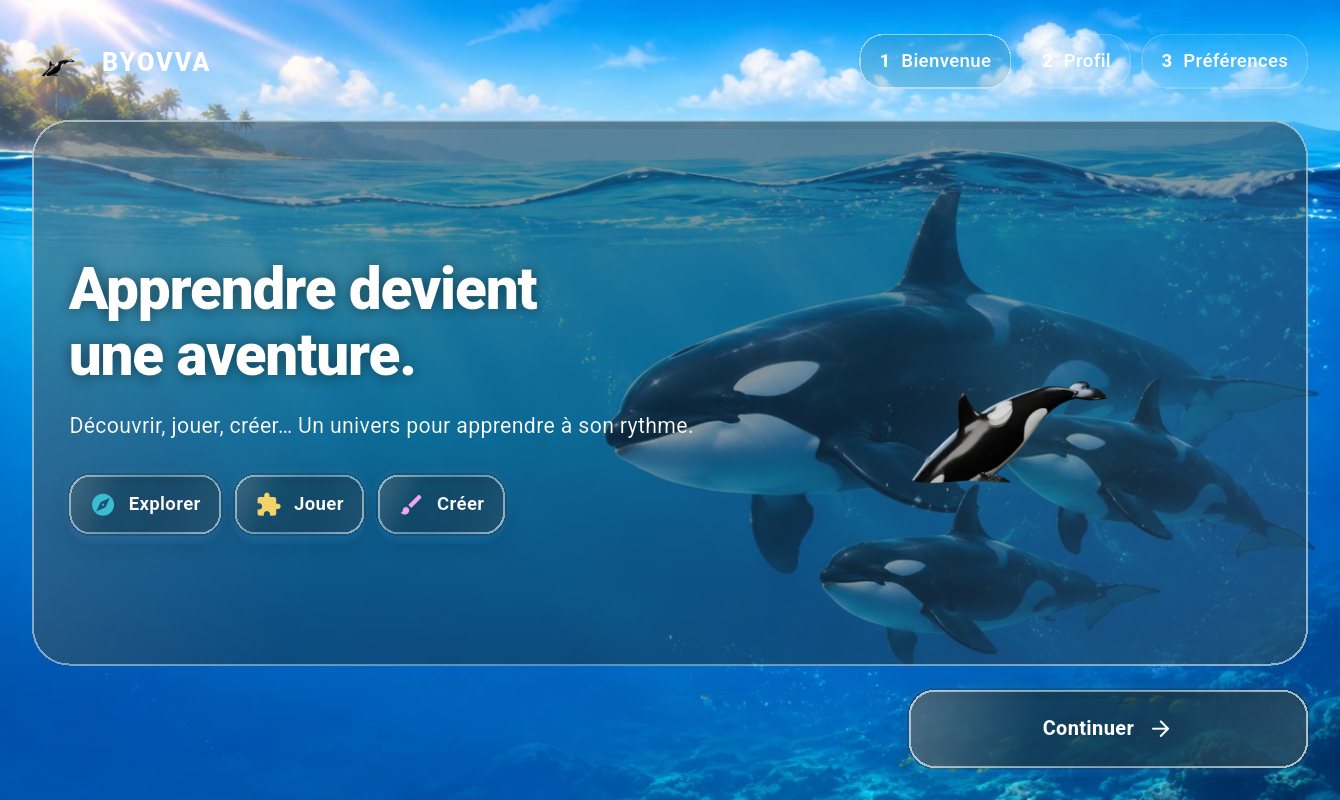
Step 1, Welcome. Real screenshot. -
2
Profile
The Let's create their profile asks for your child's first name and age, to adapt the activities.
- Type their First name. It is the only required field.
- Choose their Date of birth in the calendar. The tablet works out their age.
- If you wish, indicate Girl or Boy. You can leave Not specified.
- Touch Continue.
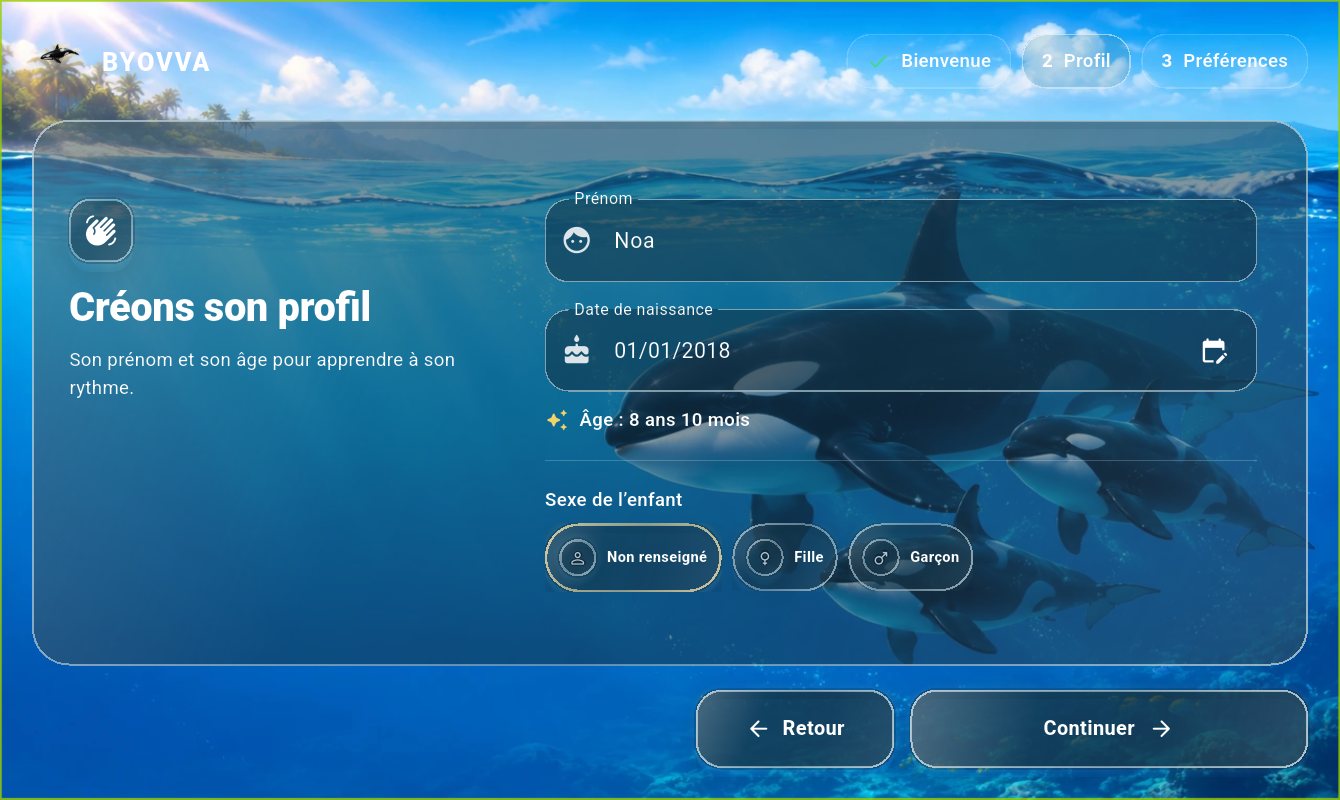
Step 2, Profile. Real screenshot, test profile. -
3
Preferences
The Your way sets the languages, the country and the tablet's color.
- Choose the Main included language. The screen switches to that language right away.
- Choose the Second included language, different from the first.
- Choose the Country of residence : it is used for holidays and calendar events. You can change it later.
- If you wish, choose a theme color. Default: Ocean.
- Touch Start. The home screen opens.
Choose the two languages carefully. They are included with the tablet and can no longer be replaced, even after a reset. Other languages can then be unlocked in the Shop.
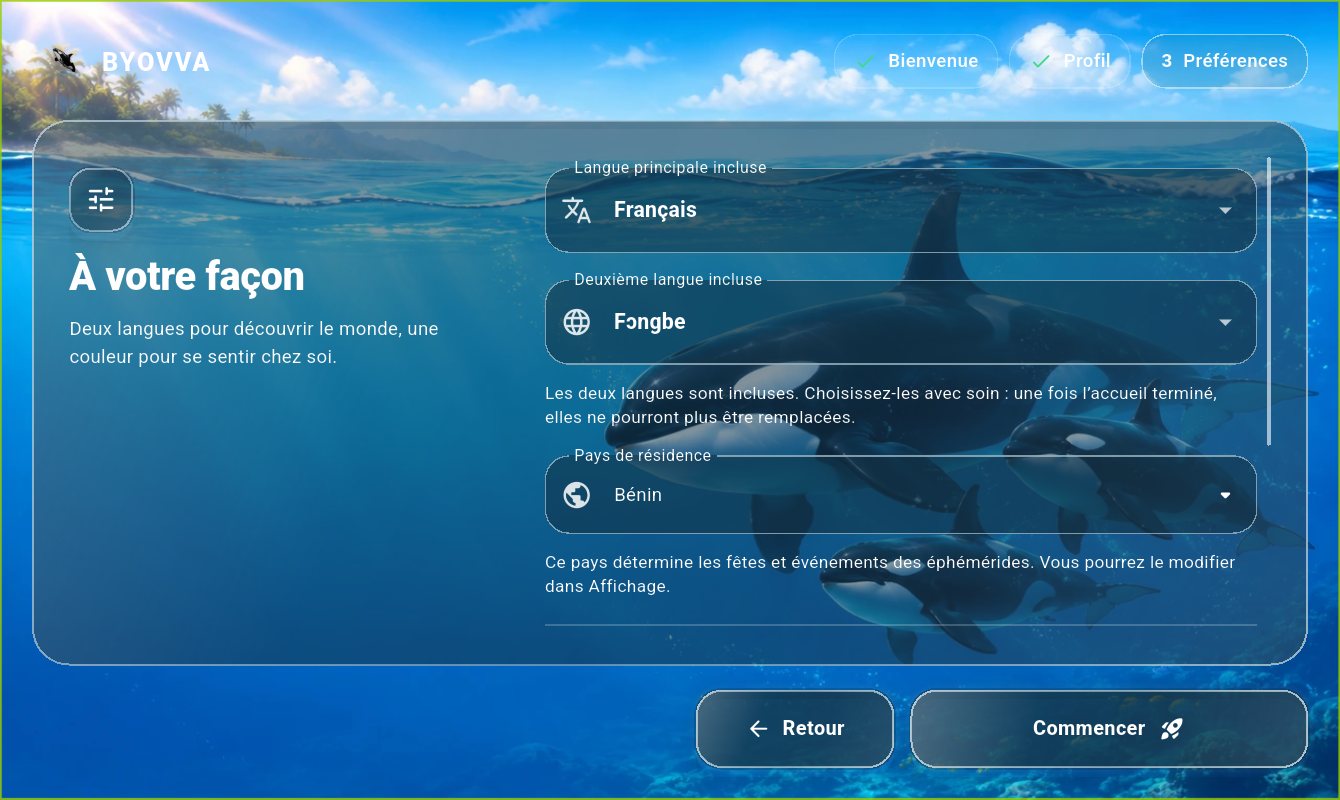
Step 3, Preferences. Real screenshot, test profile.
If a message appears
- First name missing
- Enter the child's first name. Fill in the First name field.
- Same languages
- Choose two different languages. Change the second language.
- Country missing
- Choose a country to continue. Open the list and choose your country.
- Languages already chosen
- The two included languages have already been chosen on this tablet. After a reset, keep the two languages offered.
Level by age
You have nothing to choose: Byovva works out the level from the date of birth and adapts the content. It changes by itself with age.
Before age 2 (levels L0 to L2), the activities are designed to be done with an adult, with no graded quiz. The date of birth can be corrected in Settings, tab User.
| Age | Level |
|---|---|
| Under 6 months | L0 |
| 6 to 11 months | L1 |
| 1 year | L2 |
| 2 to 3 years | L3 |
| 4 to 5 years | L4 |
| 6 to 7 years | L5 |
| 8 to 9 years | L6 |
| 10 to 11 years | L7 |
| 12 to 13 years | L8 |
| 14 to 15 years | L9 |
| 16 years and over | L10 |
Right after
The tablet is ready: the activities work without Internet. Three settings complete the setup.