VVA
2Step 2 of 4
Discover the tablet
The home screen, the bottom bar, the dashboard, and the tools that help your child search, talk to Byovva and observe the world.
The home screen
Everything starts here. Byovva is the only app on the tablet: your child cannot leave it for other apps or for the Android settings.
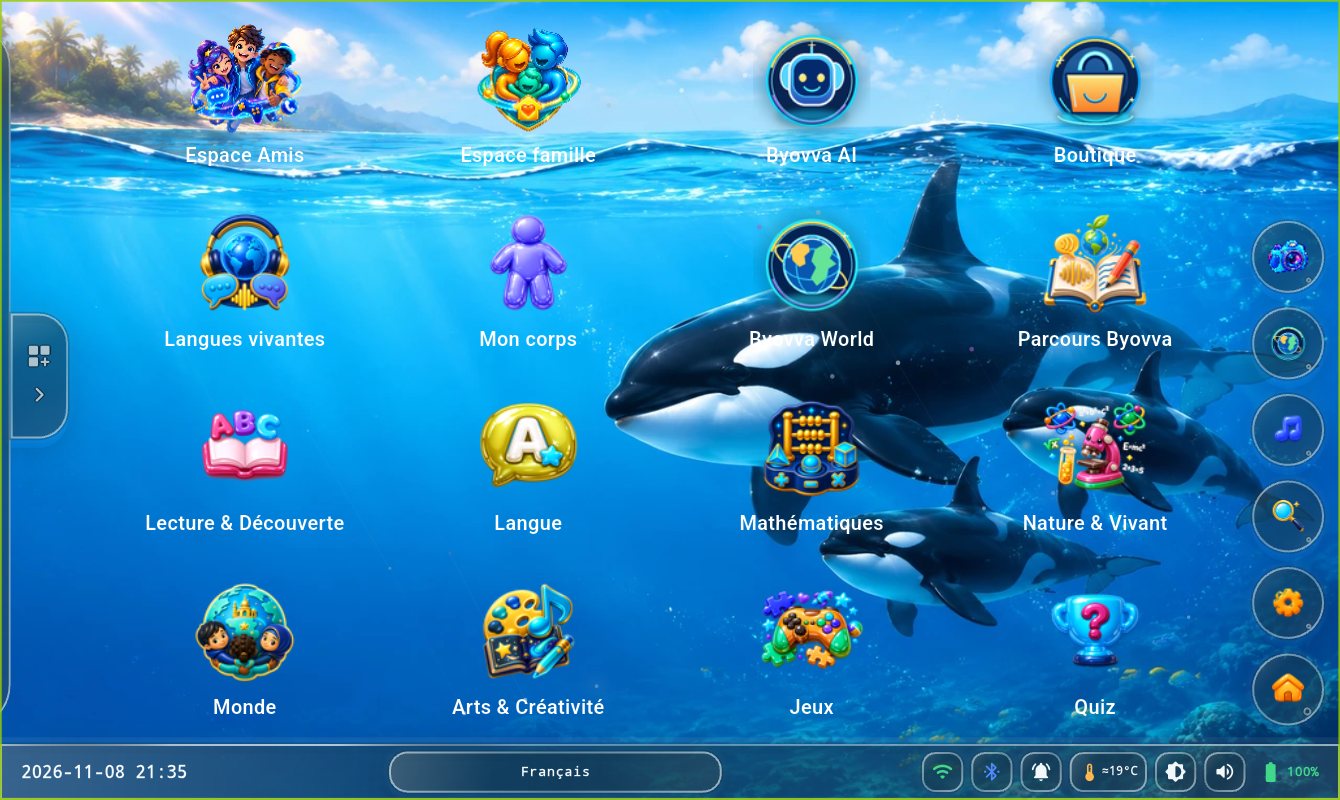
Real screenshot of the home screen, Byovva 0.1.37, test profile Noa.
The dashboard
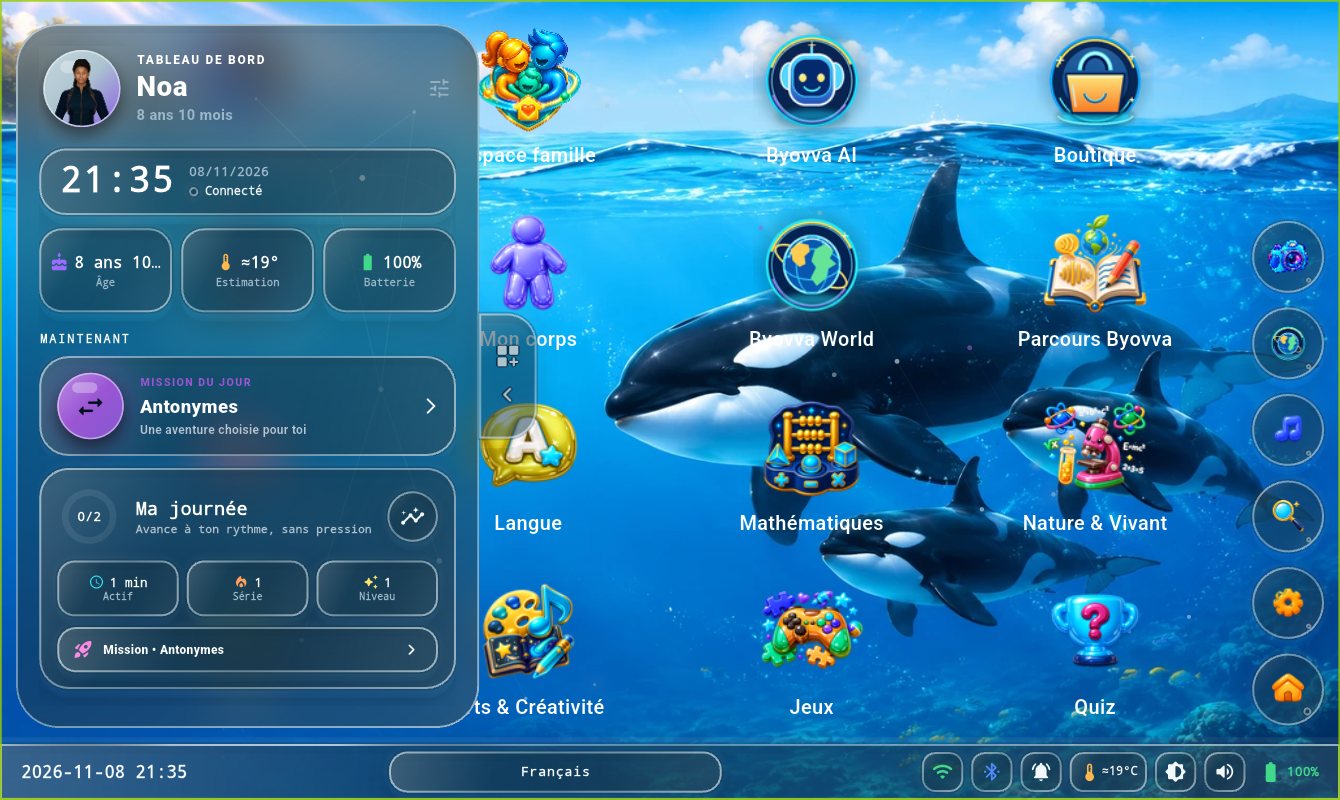
The handle on the left edge opens the summary of the day. The badge shows what's new to see.
Friends space
Messages with friends' tablets, linked by QR code.
Family space
Messages and calls with the parents who use Byovva Connect. This is also where the parent QR code is.
Byovva AI and Shop
The offline artificial intelligence tools, including AI Cam, and the family shop.
The learning worlds
Living languages, My body, Byovva World, Byovva Path, Reading & Discovery, Language, Mathematics, Nature & Living things, World, Arts & Creativity, Games and Quizzes. Each tile opens its activities.
The quick buttons
From top to bottom: Camera, Byovva World, The Byovva song, Search, Settings and Home. They hide during an activity.
Date, time and language
Touching the time opens Settings. A long press starts the screensaver.
The status bar
Wi-Fi, Bluetooth, sounds, estimated temperature, brightness, volume and battery.
Depending on age. Some tiles only appear from a certain level: Living languages shows from level 2. The level is set in your child's profile.
The bottom bar
It stays visible on the home screen. One touch is enough to adjust sound or light.
The dashboard
A summary of your child's day, to open from the home screen or from Settings.
- Touch the handle on the left edge of the screen, or swipe right from that edge.
- The DASHBOARD drawer opens: first name, connection, battery, and the activity to resume or the MISSION OF THE DAY.
- Further down, My day and COMING UP : family birthdays, missed calls, Friends space, Family space, challenges.
- Swipe left to close it.
After 45 minutes of activity, Byovva suggests a break: Great session! A short break would do you good.
Search
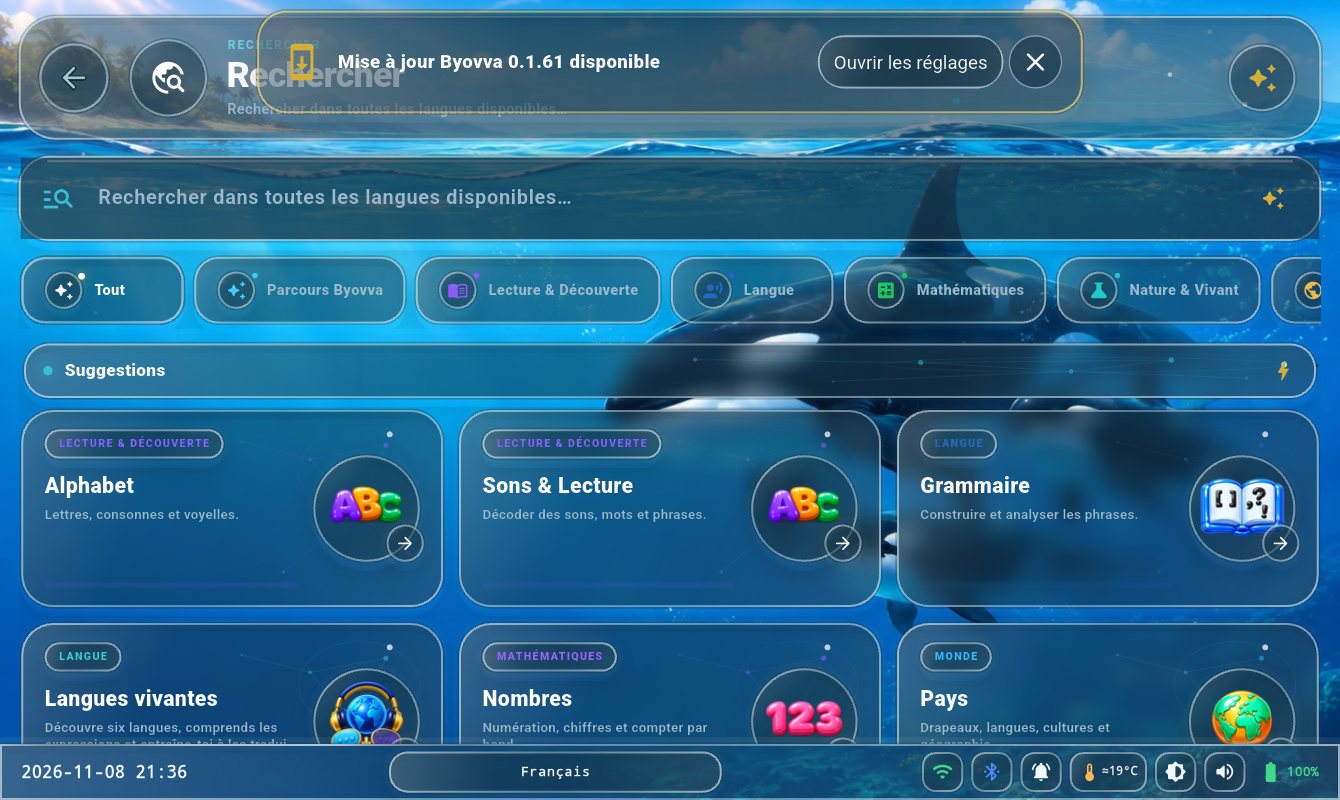
The Search screen searches the tablet's lessons and cards, without Internet.
- Touch the round Search button (the magnifying glass), on the right of the home screen.
- Type a word in Search in all available languages…Before you type, Byovva offers Suggestions : Alphabet, Sounds & Reading, Grammar…
- Filter by world, from All to World, then touch a result to open it.
on the emulator, the first search stayed on “Searching...” right after installation: to be checked on the tablet.
Talk to Byovva
Your child can open an activity or start a search by voice. Everything happens on the tablet: no sound is recorded or sent. On the Byovva AIpage, this tool is called AI Micro, labeled Local voice beta.
Turn on the voice assistant
- Open Settings, tab Display and wallpaper, section Languages.
- Turn on Call Byovva and enter the parent PIN.The assistant is off when the tablet is delivered. It works when the tablet is set to French.
Talking to it
- Say “Byovva”, pronounced byo-vah.
- Wait for its answer: Yes?
- Give the command, for example “open fractions” or “search for volcanoes”. Byovva answers Opening… or Searching…
The assistant pauses during a call, audio playback or the music studio. If it misunderstands, adjust the microphone in Call settings.
the assistant is labeled “Local voice beta” and has not yet been validated with a real voice on a tablet. The interface examples run “Byovva, open fractions” as a single sentence, whereas the instructions say to wait for “Yes?”.
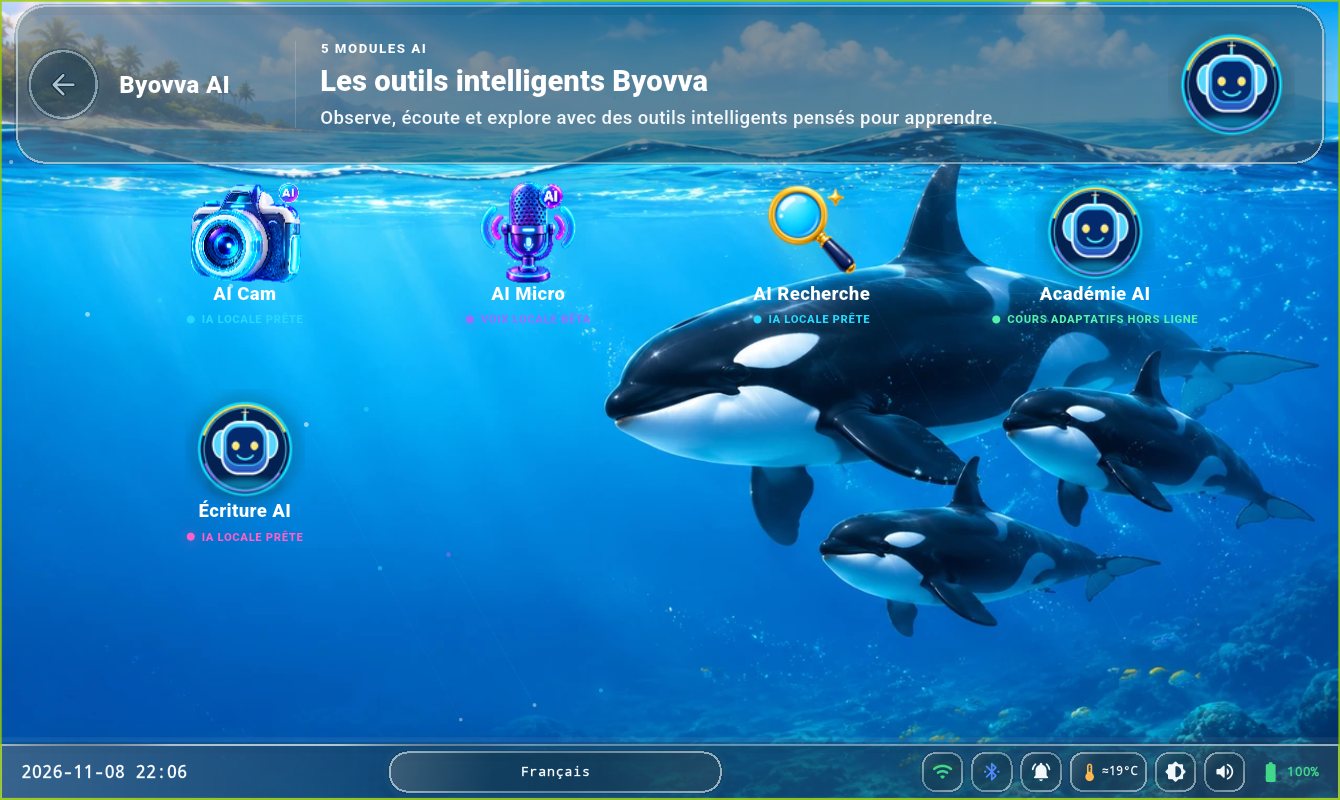
AI Cam
Your child shows an object to the camera: AI Cam suggests a name and cards to look at it differently. Without Internet.
- On the home screen, touch Byovva AI, then AI Cam.The round Camera button opens the simple camera, not AI Cam.
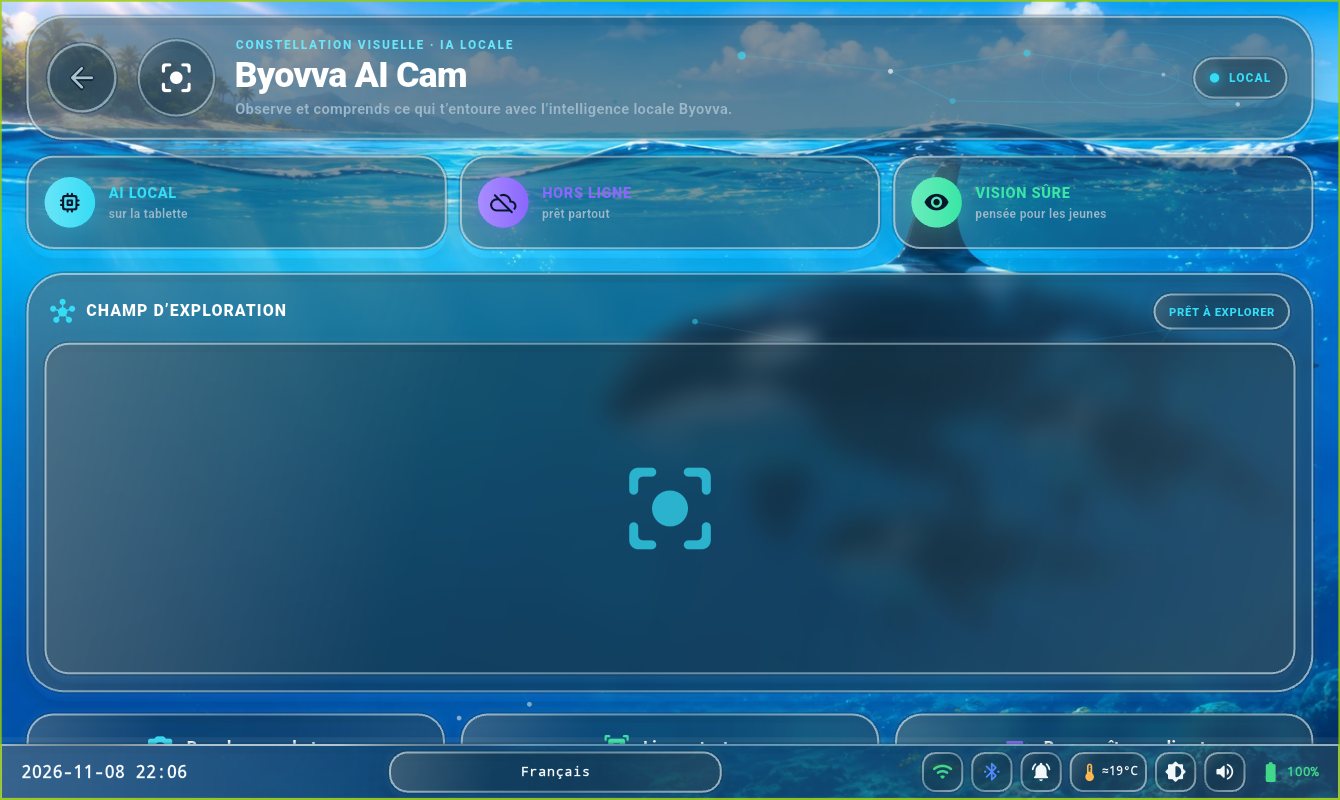
- Choose Take a photo, Read a text or Live recognition.
- Touch a suggested card to learn more about the recognized object.
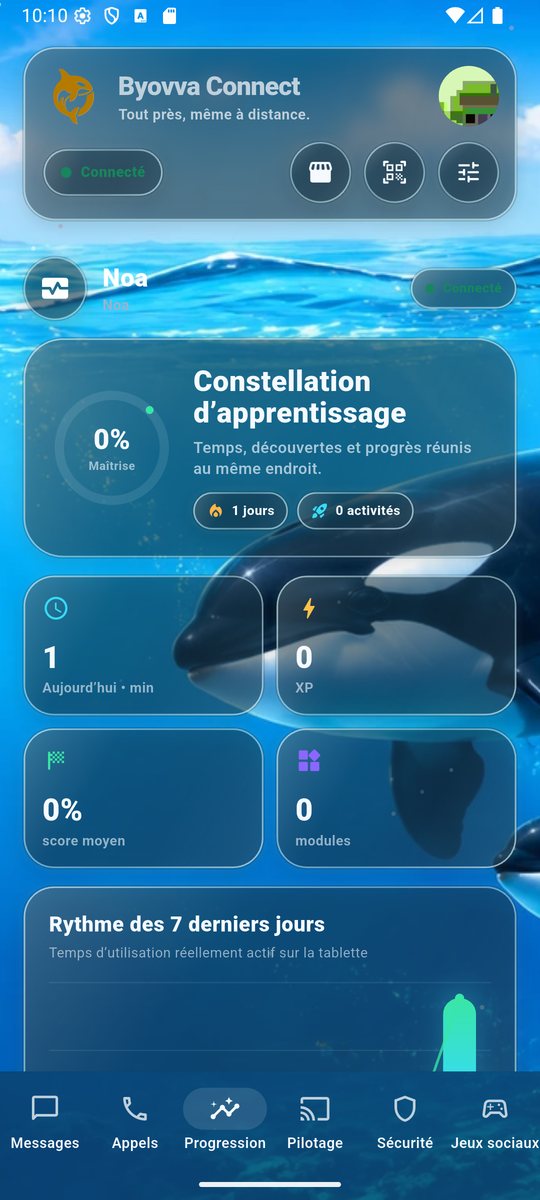
Their day and their progress
Every day Byovva offers a suitable mission and rewards effort.
- Mission of the day
- The lesson to review or the least mastered one, suggested in the dashboard.
- Goal of the day
- Two activities a day to start with, adjustable from one to five.
- XP points
- Earned with every answer, more when your child succeeds alone. A new level every 200 XP.
See the tracking
- Open the dashboard and touch See my whole day.
- The Learning constellation page shows the pace of the last 7 days, the most explored worlds, the latest scores and the current streak.
You can also follow their progress from your phone, in the Progress tab of Byovva Connect.
Sleep mode
- 5 minutes without touching: Byovva screensaver
- 2 minutes later: the screen locks
- One touch wakes the tablet up
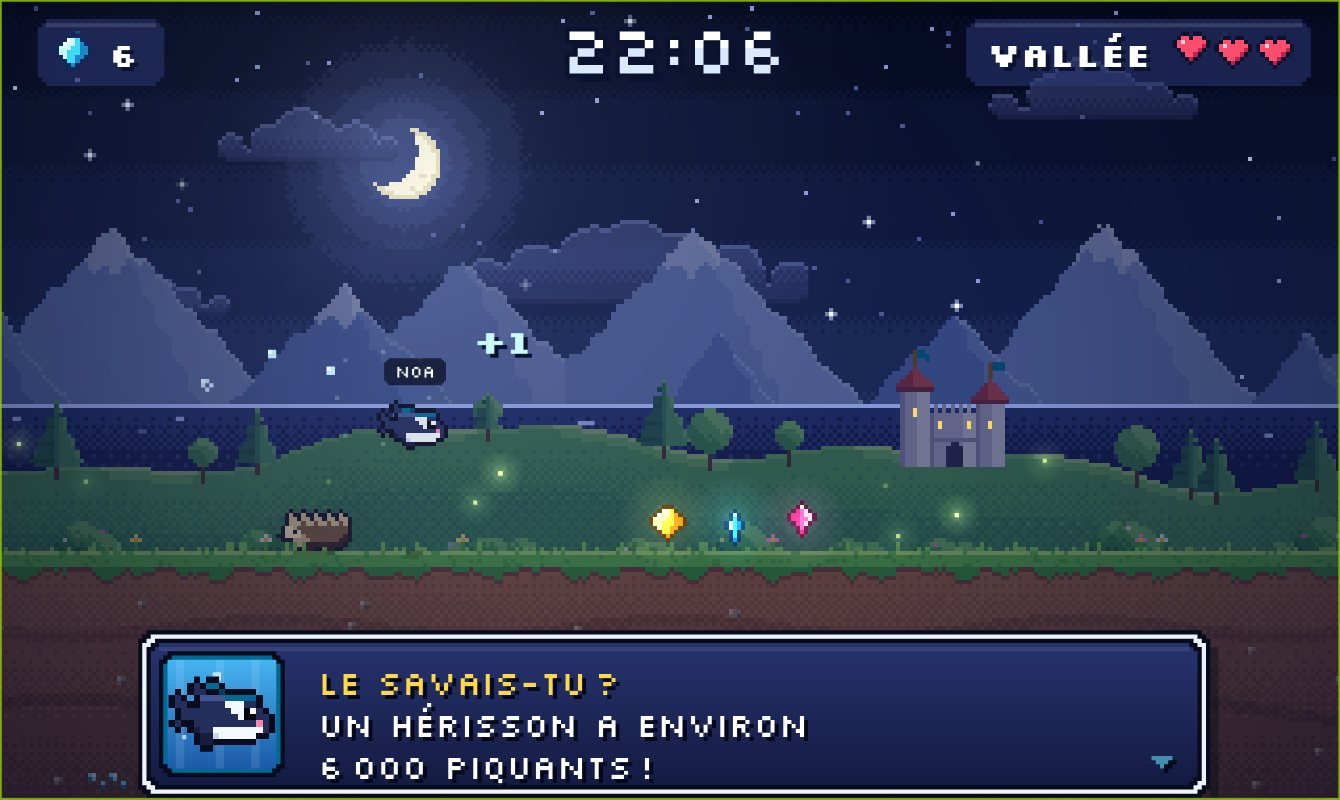
To start the screensaver right away, long-press the date and time, at the bottom left. The theme changes with age: here, the “pixel quest” of an 8-year-old, with a “Did you know?”.