 VVA
3Step 3 of 4
Byovva Connect
The parents' app, on Android or as a web version. Download it, create your profile, then link it to your child's tablet with the parent PIN. Allow ten minutes, with both devices at hand.
1Part 1 of 3
Download Byovva Connect
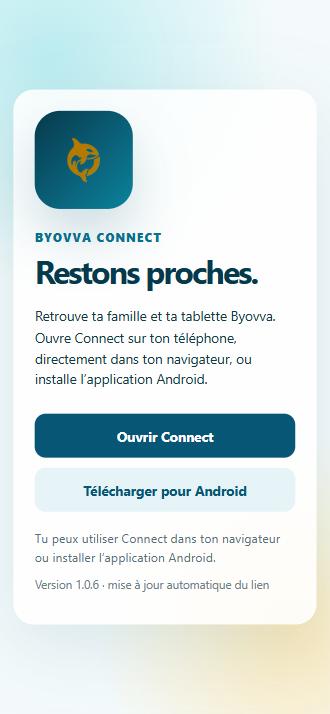
Byovva Connect is the parents' app. It is available now at connect.byovva.com, the official page: the link always leads to the latest version.
Android phone
The full app, with the connection without Internet when you are near the tablet.
Download for AndroidiPhone and iPad
The web version, to add to the home screen. It needs Internet to exchange with the tablet.
Open the web versionOn Android
- On your phone, open connect.byovva.com and touch Download for Android.
- Open the downloaded file, named Byovva-Connect-…apk.Android asks you to allow installation from your browser: accept for this file. Byovva Connect is only downloaded from connect.byovva.com.
- Touch Install, then Open.
On iPhone or iPad
- Open connect.byovva.com in Safari and touch Open Connect.
- Touch the share button, then Add to Home Screen. Byovva Connect then opens like an app.
Permissions requested
- Camera
- scan the tablet's QR code, take a photo, make a video call.
- Microphone
- record a voice note, talk during a call.
- Bluetooth, nearby Wi-Fi, location
- connect to the tablet without Internet when you are next to it. If you decline, Connect only uses the Internet.
Updates. Connect checks by itself whether there is a new version. When there is, a banner offers Update. If the screen Update Connect appears, touch Open the new version to continue.
2Part 2 of 3
Create your parent profile
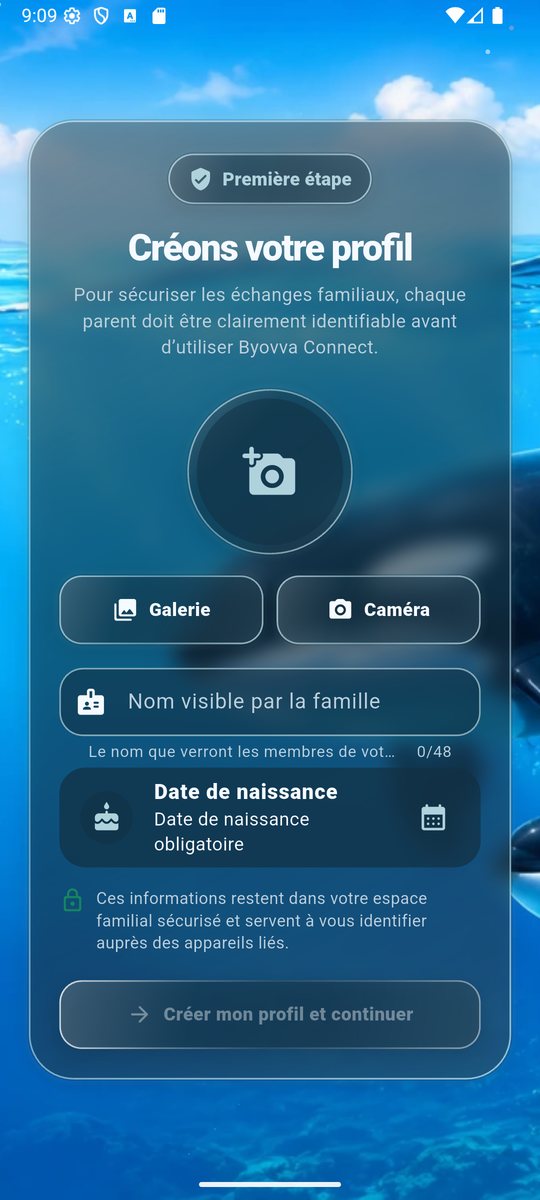
The first time you open it, Connect asks you to introduce yourself. Each parent must be clearly identifiable by their family before exchanging with them.
- The Let's create your profile appears.
- Add a photo of yourself with Gallery or Camera.The photo is required.
- Fill in Name shown to the family, for example “Mom” or “Dad Kofi”.This is the name your child and the other family members will see.
- Enter your Date of birth.
- Touch Create my profile and continue. The Connect home screen opens.
The parent PIN is not created in Connect. It is chosen on the tablet, and it protects the pairing in the next step.
3Part 3 of 3
Link the tablet to your phone
Pairing is done only once, with both devices side by side. It uses a QR code shown on the tablet and is confirmed with the parent PIN: nobody else can link to your child's tablet.
-
On your child's
Open the Family space
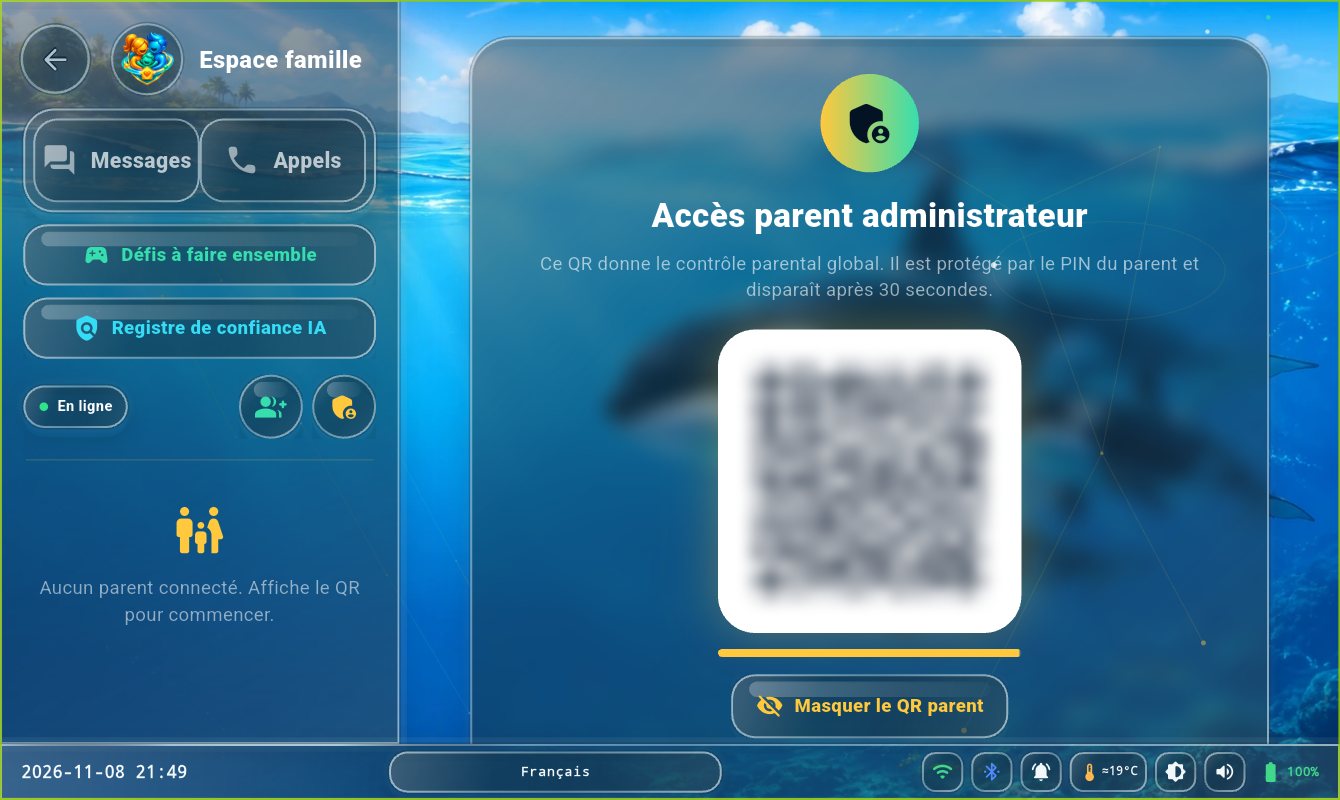
On the tablet home screen, touch the Family spacetile. As long as no parent is linked, the Admin parent QR button appears in the center: touch it.
-
On your child's
Enter or create the parent PIN
If a PIN exists, type your six digits and touch Unlock. The first time, the tablet shows Create the parent PIN : choose six digits known only to the parents, confirm them, then touch Create PIN. Avoid easy sequences like 123456.
-
On your child's
The QR code is shown for 30 seconds
It can only be used once and then disappears. If it disappeared before the scan, touch again Admin parent QR.
-
On your phone
Open the scanner
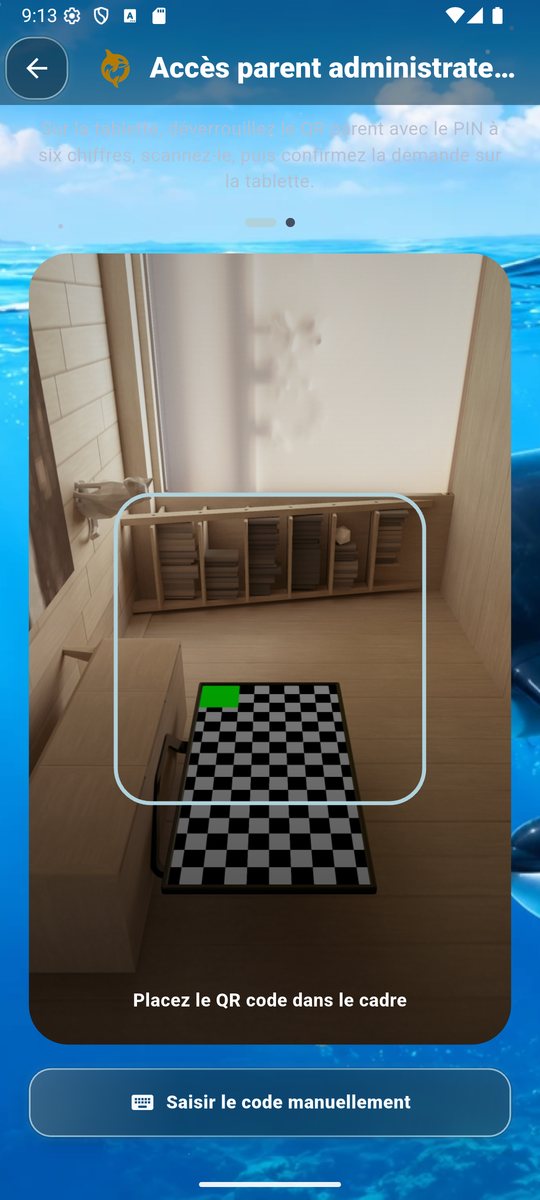
In Connect, touch the QR icon at the top of the home screen, Link a tablet. You can also touch Scan the Byovva QR in the Messages tab.
-
On your phone
Scan the QR code
Place the QR code in the frame. Connect checks it, then shows:
QR recognized. Now confirm the request on the tablet with the parent PIN. -
On your child's
Authorize this phone
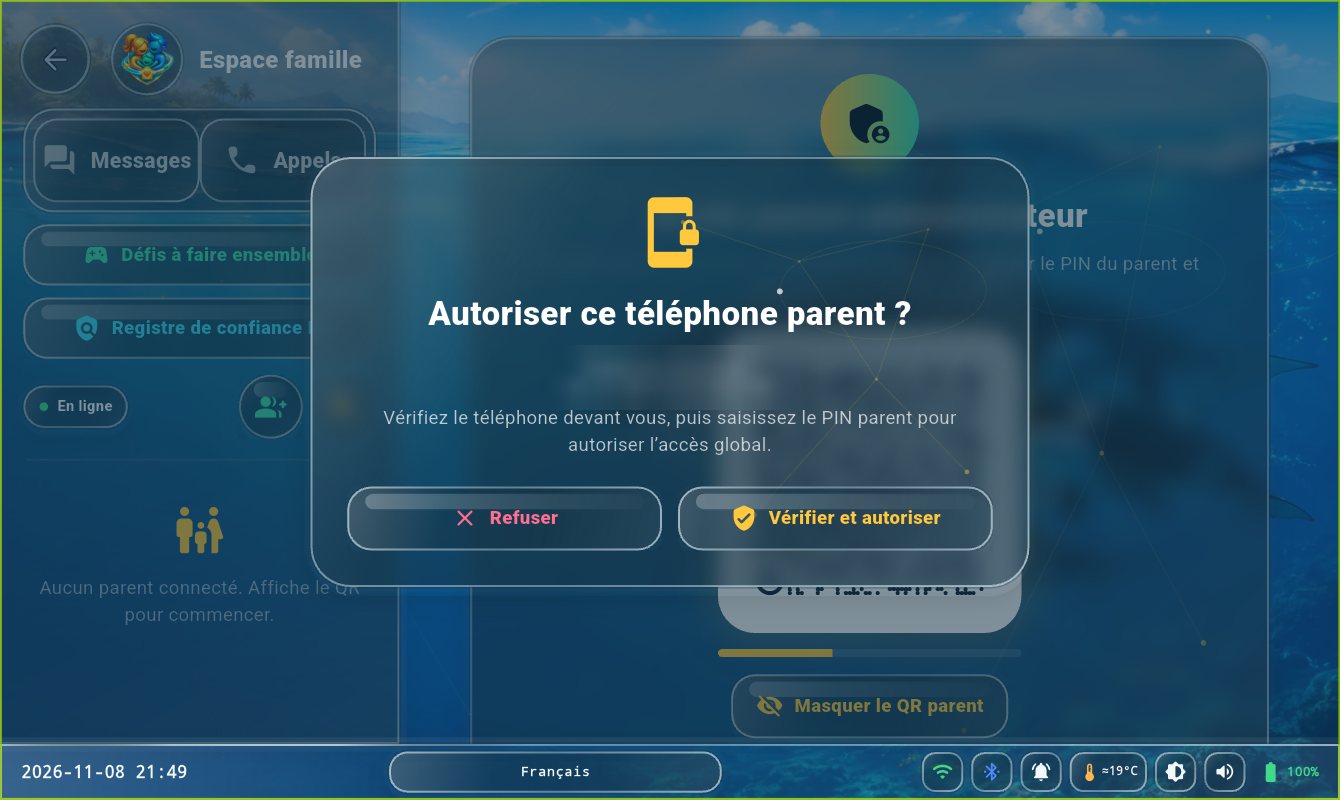
The tablet asks Authorize this parent phone? Check that it is the phone in front of you, touch Check and authorize, then enter the PIN again. Do it within a minute of the scan.Not your phone? Touch Decline.
-
On your phone
It's linked
Parent access securely authorized.Your child appears in My family, and a private conversation with them is created. On the tablet, the QR code is hidden and you appear in the Family space.
With or without Internet. With Internet, the two devices do not need to be on the same Wi-Fi network. Without Internet, pairing goes through the nearby connection, Bluetooth and Wi-Fi Direct (Android only): keep both devices side by side. In that case, the tablet does not ask for the PIN again, the one entered to show the QR code is enough.
A second parent? They install Connect on their own phone and follow the same step. On the tablet, the parent QR code then opens with the shield icon, at the top of the contact list in the Family space. Parents linked to the same tablet automatically find each other in My family.
Messages exchanged before pairing are not recovered. The conversation starts when you link.
If a message appears
The text shown by Connect during pairing, and what to do.