 VVA
Keep it at hand
Updates and content
Byovva works without Internet. Wi-Fi is used to receive new versions and new content, with almost nothing to do.
What happens automatically
The tablet looks for a new version shortly after it is switched on, then every six hours. When it finds one, it downloads and installs it.
For this to work
- Wi-Fi is connected. Watch Connect to Wi-Fi.
- The battery is above 20% or the tablet is plugged in.
- Byovva is switched on. The check does not happen when the tablet is off.
- There is enough space left. An update needs about 4.5 GB free during installation.
When a version is ready, a Byovva update … available banner appears, with the button Open settings. At the end of the installation, the tablet restarts by itself.
on a tablet delivered in kiosk mode, installation happens without confirmation. On another installation, Android asks for confirmation. No screen announces the final restart.
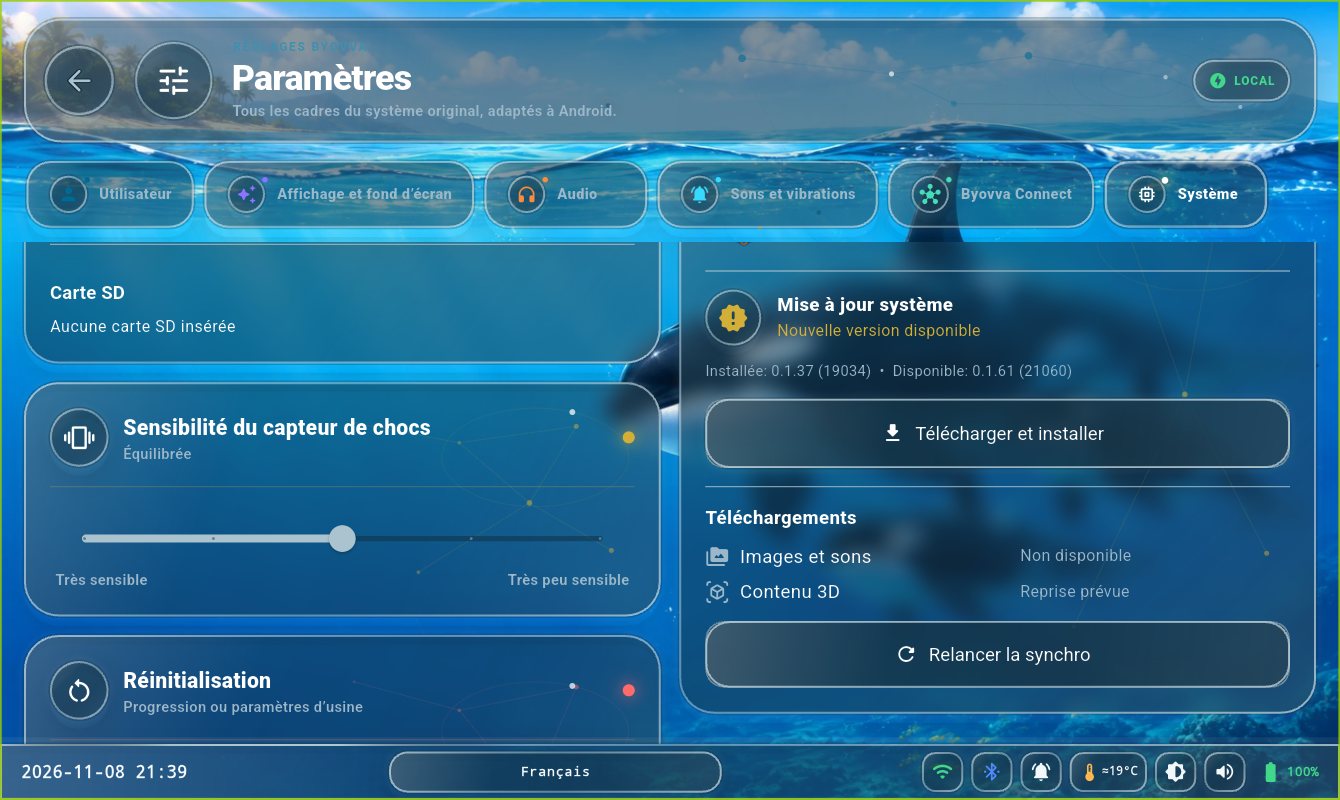
Checking by hand
- Open Settings, tab System.
- In the App, section System updatetab, touch Check.
- If a version is offered, touch Download and install. Keep the tablet plugged in until it restarts.
Understanding the messages
| Message shown | What it means |
|---|---|
| App up to date | Nothing to do. |
| Downloading… then Installing… | The update is in progress. Leave the tablet on and plugged in. |
| Wi-Fi connection required | Connect to Wi-Fi. |
| Battery too low | Plug in the tablet, the update will resume. |
| Waiting for the installation window | The update will happen at the scheduled time. Nothing to do. |
| Not enough space to install the update | The tablet is short of space to install the new version. Contact the Byovva team. |
| Update timed out | Touch Check to restart it. |
Images, sounds and 3D
Images, sounds and 3D worlds arrive separately, from the Byovva content server. Only new or changed files are sent.
- Open Settings, tab System, section Downloads.
- Two lines are shown: Images and sounds and 3D content, with their status: Up to date, Downloading, Update needed or Pending.
- If a download seems stuck, touch Restart sync.
3D content on SD card
The 3D worlds (World, Animals, Forest, Body) can be installed on an SD card with a “Byovva” folder. This feature is still being tested: to be described once released (choice of card, copy, 32 GB card validated, 64 GB not tested).